- NxCore Symbology
- Viewer Questions
- Time and Sales Questions
- NxCoreAccess Questions
Have a unique problem? Check the forums for an answer or post your question there. If you need immediate
help please contact NxCore support at
support@nanex.net or call 847-501-4787. You can also use instant
messaging service built into NxCore Access to contact tech support.
Detailed NxCore Symbology
Equities
All equities begin with a lower-case 'e'. For example, 3M's ticker is MMM and in NxCore it is represented as eMMM.
Options
- Full option string: oAAPL_1023G200
- o = indicates the symbol is an option
- AAPL = the root symbol
- _ = separates the root from the rest of the string and is required
- 10 = 2 digit year, represents the expiration year
- 23 = two digit day, represents the expiration day
- G = Month Code, these are the same as Pre-OSI month codes. Calls: A-L Put: M-X
- 200 = Strike price. This can have decimals (12.5, 1.75, etc.)
Futures
- Full Future string: f6E.H11
- f = indicates the symbol is a future
- 6E = the the root symbol
- . = a period to separate the root form the contract date
- H11 = Contract Month and year. Same Date letter codes as Pre-OSI options. Calls: A-L Put: M-X
Future's Options
- Full Future Option string: pES.H11.100000C
- p = indicates the symbol is a future option
- ES = the future option root
- . = a period to separate the root form the contract date
- H11 = Contract Month and year. The month code matches the underlying future.
- . = a period to separate the contract information form the price
- 100000 = the price -- the decimal point varies based on the contract
- C = indicates either Call or Put (C = Call, P = Put)
Indexes
All indexes begin with a lower case 'i'. For Example, iSPX is the S&P 500 index.
Back to Top
Nxcore API Viewer Questions
Basic Viewer Overview
NxCore Access comes with the Nxcore APIViewer. NxCore APIViewer is a tool used for viewing (reading) data from the tape. To run viewer from NxCore Access, click "Run Viewer".
The APIViewer does not modify the data or allow you extract the data in any way it is completely read-only. The APIViewer is a great tool to find and view specific data on the tape. It has a variety of filtering options that are
enabled and disabled by the user.
Viewer can play real time data or a historical tapes. A detailed look at how to get started and how to filter data can be found below.
I loaded up the APIVIewer, how do I play a tape?
While NxCore Access is running and receiving data, NxCore APIViewer will automatically begin playing the current day's tape. There are three ways to change which tape is playing.
If the tape is within the last 16 days (including today), click "Select Date" and a menu with appear with all the tapes from the last 16 days. In that same menu there is option to 'Browse..'.
This will allow the user to select a tape from a specific location. Use that option is the tape you wish to play is not in the last 16 days. The final method is to strike F2 and a new menu should appear.
In this new window there is a field to manually enter the path to the tape, or you can click 'Browse' (Just as before).
Back to Top
How do I filter data in Viewer?
NxCore APIViewer has a variety of filtering options to find exactly what the user is looking for. There are two ways to filter data: exclude data and/or filter based on message type, category type, and symbol.
Excluding data will speed up processing the tape file, but you will not be able to see the excluded messages. To access these options strike F2 and a new menu should pop up. The image below displays the control flags used for excluding data from processing.
By checking these, it allows the tape to skip processing those messages. This can speed up how fast viewer can run through the data. If an item is excluded from processing, it cannot be seen in viewer.
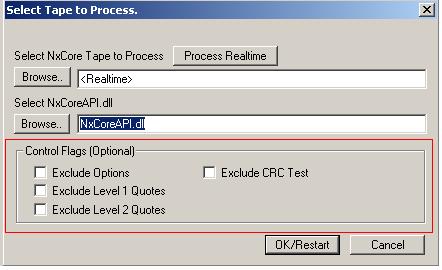
- "Exclude Options" -- Excludes ALL option messages from processing. This will have a dramatic effect on the speed of process tape (if the tape has options).
- "Exclude Level 1 Quotes" -- Excludes ALL level 1 (exchange Quotes) quotes from processing.
- "Exclude Level 2 Quotes" -- Excludes ALL Market Maker and other level 2(depth) data.
- "Exclude CRC Test" -- Excludes CRC checks in the tape.
By checking any or all of these, you are removing them from processing. For example, do not exclude quotes if they are necessary for finding specific quote data.
The other way to filter data is by clicking the 'Filter' located button along the top row of buttons. Just as before, a new dialog box will appear. These filtering options do not remove data from the tape, but simply ignore the messages
that are not required. Located on the left are all the message types, on the right is a drop down menu for all the categories and above that a field to enter a symbol. To find a symbol, enter
the symbol the exact same way as it would show up in the feed. To find Apple, enter eAAPL into the symbol field and check 'Show only this Symbol'. The one exception to this is options.
We have our own option symbology, the break down can be seen above in NxCore Symbology or below.
Option Symbology Breakdown
- Full option string: oAAPL_1023G200
- oAAPL = the root symbol
- _ = separates the root from the rest of the string and is required
- 10 = 2 digit year, represents the expiration year
- 23 = two digit day, represents the expiration day
- G = Month Code, these are the same as Pre-OSI month codes. Calls: A-L Put: M-X
- 200 = Strike price. This can have decimals (12.5, 1.75, etc.)
Options can also be filtered by the root alone. By entering oAAPL, viewer will display all options with the AAPL root.

The data goes far to fast to read, how do I slow down APIViewer?
NxCore APIViewer will process data as fast as possible unless you tell it otherwise. There are settings to slow down or speed up how APIViewer processes the data. The button to the right
of 'Filter' is the speed control. By default it is 'Full Speed' but it can be set to any of these speeds:
- Stop/Step -- The most useful option while filtering. This will step through the data, stopping when it reads a message that matches the filter criteria. Can also be
activated by striking F4.
- 1/20 x RT -- 1/20th real time speed
- 1/10 x RT -- 1/10th real time speed
- 1/5 x RT -- 1/5th real time speed
- 1/2 x RT -- 1/2 real time speed
- RT Simulation -- Simulates time going by in real time
- 2 x RT -- double real time
- 5 x RT -- five times real time
- 10 x RT -- ten times real time
- 20 x RT -- twenty times real time
If you still have any questions, comments or concerns please contact support: support@nanex.net or 847-501-4787
Back to Top
Nxcore Time and Sales Questions
NxCore Time and Sales Basic Overview
NxCore Time and Sales is used for extracting data from the tape. It allows the user to print trade, quote, and market depth (Level 2/Market Maker)
data for a particular
symbol(s). Time and Sales has a great deal of output options that are customizable by the user. Each button and check box has a tool tip describing the output.
Depressing a button tells Time and Sales to print that field to the output file. This customization allows the user to only print data they are interested in viewing.
Time and Sales has the ability to extract real time or historical tape data.
The user has complete control of the output file location, file type and output fields. Time and Sales will print header information on the first few lines of the
output file. The header lists the fields associated with a message type and the order in which the data is printed. All header lines begin with a semi-colon.
How do I setup Time and Sales?
Before you can run Time and Sales, there are a few fields that must be populated. The first field is the "Tape File:" field. You can either
enter the location manually (C:\NxCoreData\20100701.IV.nxc) or browse to a tape location.
Next, enter the symbol(s) you wish to extract data for. This can be done a few different ways.
The user can enter in a single symbol, using the symbology as described above. For example, if we are interested in Apple, enter eAAPL on the symbol line. To enter multiple symbols, separate the
symbols with a comma, no spaces: eAAPL,eMMM -- The final way is to import a text file. In the actual file print one symbol per line. After you have created, populated and saved the file, click 'Import' and navigate to the file with the symbols.
The symbology for options is the same as viewer and is described in the first section.
The next step is to enter the start and end time. The start and end times are based on a 24 hour clock. For example, 2:00 PM would be entered as 14:00.
The start and end time are for the time period we wish to extract data from.
In the 'Text Viewer' field, enter notepad.exe. This field is required for viewing the data immediately after it completes processing.
The data is delimited on '|' by default and can be imported to excel or other programs. The delimiter can be changed based on user preference. Change the delimiter by changing the
character in the 'Delimiter:' box located on the right side of Time and Sales.
The final field is the path and file name for the output file. For example, C:\NxCore\testfile.txt -- The path must be to a valid location
otherwise Time and Sales will not start. Time and Sales will also not start if a file name has not been entered. Be sure everything is valid and named properly before continuing.
Once all of these fields have been entered
Time and Sales is ready to run. Select all the desired output options and 'Display Options' then click 'Run'.
Back to Top
How do I make sense of Time and Sales output?
Time and Sales files will always have header fields describing the output fields and their order selected by the user.
The header lines always begin with ';' for easy elimination when importing the data. Each Section below describes the output fields for each message type.
Header and OptTail
;{Header}= LstExg|Sym|SsDte|SsID|NxTime|ExgTime|RepExg
{OptTail}= ULExg|ULSym|Strike|Expire|Put/Call|CtcUnit
Every Time and Sales file will have a header and OptTail. They have the basic information for all symbols. The header will always follow the message type.
Header
- LstExg = Listed Exchange
- Sym = Symbol
- SsDate = Session Date (date the message is from)
- SsID = Session ID, this signals electronic or pit
- NxTime = NxCore Tape time
- ExgTime = Exchange Time the message was stamped with
- RepExg = Reporting Exchange, the exchange the message was reported from
OptTail
- ULExg = Underlying symbol's exchange
- ULSym = Underlying symbol
- Strike = Strike price
- Expire = Expiration date of the contract
- Put/Call = Flag for a put or call message
- CtCUnit = Contract Unit
Trade Message
;TD|{Header}|Trade|Tick|Size|BATE|ExgSeq|PrcFlags|CndFlags|VolType|TrdCnd|Open|High|Low|Last|
NetCh|TickVol|TotVol|{OptionTail}
This is an example header for a Trade message. Every trade begins with a 'TD|' followed by a header.
- Trade = Price it traded at.
- Tick = Price change from last trade record
- Size = Size of trade in shares
- BATE = Bid, Ask, Trade, Exception code
- ExgSeq = Exchange sequence number
- PrcFlags = Hex value of price flags for the trade record
- CndFlag = Hex value of condition flags which are derived from the Trade condition and Exchange rules
- VolType = Volume update type -- whether volume should be incremented or not
- TrdCnd = Trade Condition
- Open = Current session's Open
- High = Current session's High
- Low = Current session's Low
- Last = Current session's Last
- NetCh = Net change in price since the close of the previous session
- TickVol = Total tick volume for current session
- TotVol = Total cumulative share or contract volume for current session
Regional Quote Message
;EQ|{Header}|Bid|BidCh|BidSz|BidSzCh|Ask|AskCh|AskSz|AskSzCh|QteCnd|NqBidTick|Refresh|{OptionTail}
This is an example of an Exchange Quote message. Every quote (level 1) will begin with 'EQ|'.
- Bid = Bid price
- BidCh = Change in bid quote price from last update for the reporting exchange
- BidSz = Size of bid
- BidSzCh = Change in bid quote size from last update for the reporting exchange
- Ask = Ask price
- AskCh = Change in ask quote price from last update for the reporting exchange
- AskSz = Size of ask
- AskSzCh = Change in ofer quote size from last update for the reporting exchange
- QteCnd = Quote Condition
- NqBidTick = NASDAQ Bid Tick field
- Refresh = Include Quote refresh indicator
BBO Quote Message
;MQ|{Header}|BBOChFlags|BBidExg|BBid|BBidCh|BBidSz|BBidSzCh|BBidCnd|BAskExg|BAsk|BAskCh
|BAskSz|BAskSzCh|BAskCnd|NqBidTick|Refresh|{OptionTail}
This is an example of a Best Bid Offer Quote (BBO) message. Every BBO quote will begin with 'MQ|'. Market Maker quotes share the same code, they differ in
their data fields.
- BBOChFlags = Hex value indicating which fields, if any, changed to BBO since last update
- BBidExg = Best Bid Exchange identifier
- BBid = Best Bid price
- BBidCh = Change in best bid price since last update
- BBidSz = Best Bid size
- BBidSzCh = Change in best bid since last update
- BBidCnd = Quote condition for best bid
- BAskExg = Best Ask Exchange identifier
- BAsk = Best Ask price
- BAskCh = Change in best ask price since last update
- BAskSz = Best Ask size
- BAskSzCh = Change in best ask size since last update
- BAskCnd = Quote condition for best ask
- NqBidTick = NASDAQ Bid Tick field
- Refresh = Include Quote refresh indicator
Market Maker Quote (Level 2/depth) Message
;MQ|{Header}|Bid|BidCh|BidSz|BidSzCh|Ask|AskCh|AskSz|AskSzCh|NqBidTick|Refresh|MMQteType
|MMType|QteCnd
This is an example of a Market Maker or depth quote. This shares 'MQ|' with BBO Quotes, but the data fields are different.
- Bid = Bid price
- BidCh = Change in bid price from last update for the market maker on the reporting exchange
- BidSz = Size of bid from market maker on reporting exchange
- BidSzCh = Change in bid quote size from last update for the market maker on the reporting exchange
- Ask = Ask price
- AskCh = Change in ask price from last update for the market maker on the reporting exchange
- AskSz = Size of ask from market maker on reporting exchange
- AskSzCh = Change in ask quote size from last update for the market maker on the reporting exchange
- QteCnd = Quote Condition
- NqBidTick = NASDAQ Bid Tick value at the time of quote
- Refresh = Market Maker Quote refresh indicator
- MMQteType = Level 2 quote type
- MMtype = Market Maker Type
- QteCnd = Quote condition (if any)
NxCoreAccess Questions
NxCoreAccess Overview
NxCore Access is a program that maintains a connection to the NxCore Feed Servers and is
responsible for bringing the NxCore Feed into your computer. It also can download historic NxCore Feed data
(one or more days older) in the background. You can run it as an application or as a service. For more information
on NxCoreAccess, please see our full documentation.
My NxCoreAccess deleted a tape file, what gives?
NxCoreAccess is designed to be a robust real-time downloader. Its highest priority is to ensure the current
tape downloads successfully. To that end, it can and will delete other tape files to make sure enough
space is available for the current tape. The archive function should not be relied upon beyond the current week
(approx. 5 days of historical tapes). We *STRONGLY* encourage all customers to use a robust backup solution for
archiving tape files. Repeated requests to the support team for missing files may incur charges.
Still confused or need more help? Contact support: support@nanex.net
Back to Top
|
